AI Photo Edit Problems and How to Fix Them
Even a well-written prompt sometimes produces a strange result: a face that is not quite yours, six fingers, a shop sign full of gibberish, or a red saree that came out orange. This guide lists the problems we see most when making example images for this site, why each one happens, and what to change in your prompt or your next message.
Quick reference
| Problem | Most likely cause | First thing to try |
|---|---|---|
| The face does not look like you | The scene changed too much, or the photo is unclear | Reply “Keep my face exactly the same as the uploaded photo” and regenerate |
| Skin looks plastic or airbrushed | The model’s default beauty smoothing | Add “natural skin texture; do not smooth or beautify the face” |
| You look older or younger | Styling and lighting words pull the age | Add “same age”; for kids, “do not make the child look older” |
| Faces swapped or merged in a couple or group | The model mixes features between people | Use the two-person or group face lock and describe people by position |
| Wrong number of people | The model fills or trims the scene | Add “the same number of people” |
| Extra or twisted fingers | Complex hand poses | Give hands one simple job, or keep them out of frame |
| Gibberish text, logos or watermarks | Signs and labels in the scene | End with “No readable text, logos or watermarks anywhere in the image” |
| Outfit is the wrong colour | Coloured light or a vague colour name | Use a precise colour name and a neutral light on the clothes |
| Jewellery missing or changed | Too many items, or small items in a wide shot | Name fewer pieces, move the camera closer |
| Head or feet cut off | Framing and aspect ratio do not match | Ask for the framing and ratio in the prompt |
| Face too dark | Backlight, night scene or neon with no fill | Add “soft fill light on my face” |
| The tool refuses the request | A word triggers a safety filter | Remove the trigger word and describe the scene plainly |
The sections below explain each one.
The face does not look like you
This is the most common problem, and it has its own guide: How to Keep Your Face the Same in AI Photo Edits. In short:
- Make sure the prompt starts with a face-lock sentence.
- Use a sharp, front-facing photo with even light and nothing covering your face.
- Reply “Keep my face exactly the same as the uploaded photo” and regenerate.
- If the conversation has had many edits, start a new chat with the original photo.
Skin looks plastic or airbrushed
Image models smooth skin by default because smooth skin is common in the polished photos they learned from. The fix is to ask for the opposite in plain words: “with natural skin texture; do not slim, smooth or beautify the face.” Our face-lock sentences already include it.
Also check the rest of your prompt for words that ask for polish: “flawless”, “glowing skin”, “glamour makeup”, “beauty retouch”. Replace them with a plain description of the makeup you want, or leave makeup out.
You look older or younger than you are
Formal clothes, heavy jewellery and dramatic light can add years; soft pastel scenes can take them away. Children are the most affected: models tend to make them look older in styled scenes. Add “same age” to the face lock, and for a child use: “do not make the child look older or change their face.” For family photos, our group face lock includes “same… ages” so grandparents stay grandparents.
Couples and groups: swapped faces, merged faces, missing people
With two or more people, the model can borrow features from one face for another, blend two faces into one, or quietly add or drop a person at the edge of the frame.
- Start with the version of the face lock written for several people. For two: “Keep both people from the uploaded photo exactly as they are…; do not swap, blend or reshape their faces.” For groups, add “and the same number of people”.
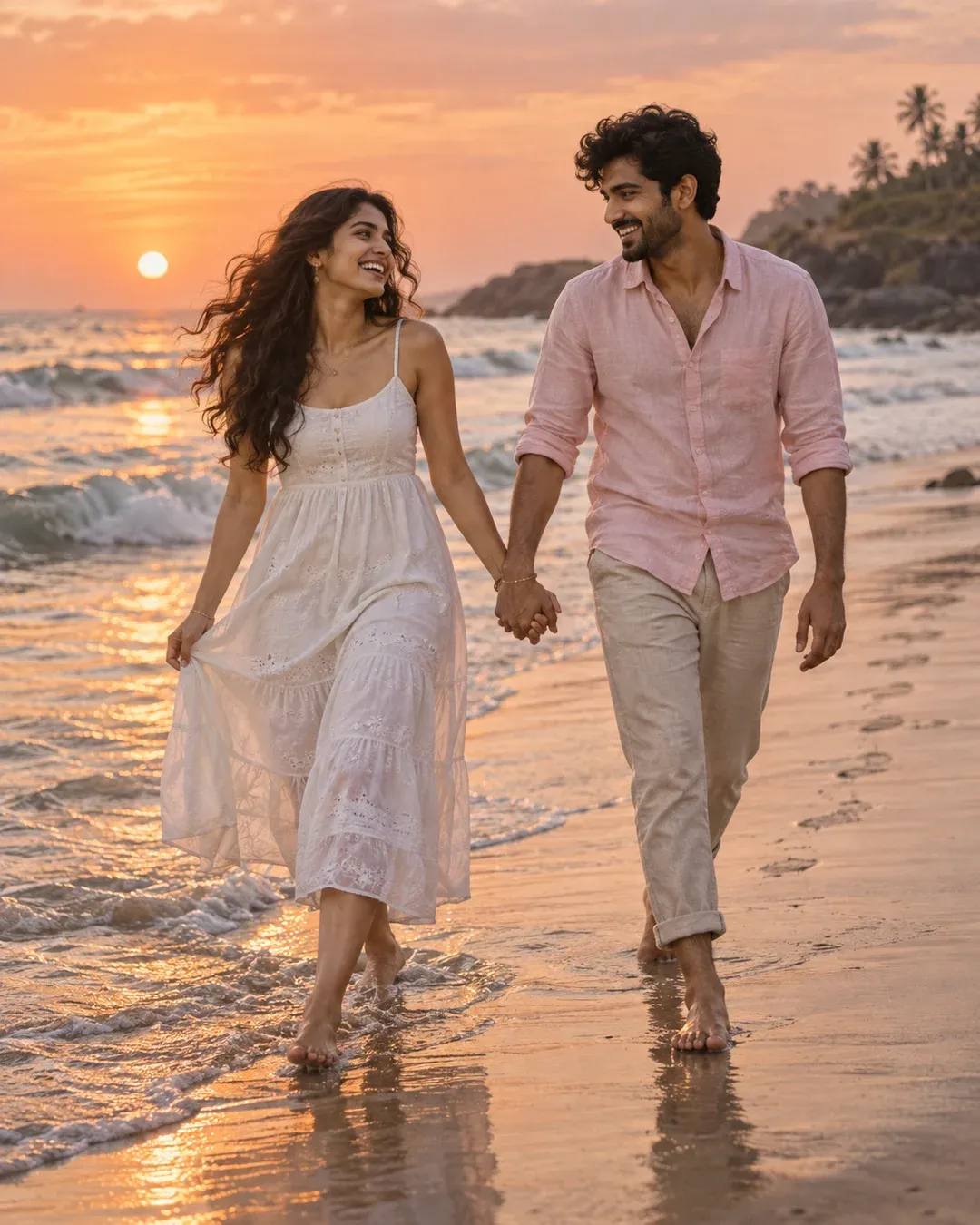
- Describe each person by position, not by gender: “The person on the left wears… the person on the right wears…”. This keeps outfits attached to the right person. See our Barefoot Beach Sunset Couple prompt for an example.
- Use one photo with everyone in it, taken at a similar distance from the camera.
- Use a smaller aperture such as f/4 and a 35mm lens so every face is sharp and nobody is lost in the blur.
Extra fingers and twisted hands
Hands are still hard for image models, especially when fingers overlap or hold small objects. Give hands one simple, natural job: holding the pallu, resting on a railing, holding a cup. Avoid poses where the fingers interlock, make signs or hold several things.
If a result is perfect except for one hand, reply with a short correction: “Fix the left hand so it has five natural fingers; keep everything else the same.” Asking for a slightly wider or tighter framing can also move the hands out of the picture.
Gibberish text, logos and watermarks
Backgrounds full of shops, posters, number plates or festival banners invite the model to write text, and AI text is usually nonsense. Every prompt on this site ends with “No readable text, logos or watermarks anywhere in the image” for that reason.
If text still appears, remove the object that carries it, for example describe “a plain wooden door” instead of “a shopfront”, or turn signs into “abstract glowing shapes”. Avoid brand names entirely: they are a common reason for both garbled logos and refused requests.
The outfit comes out in the wrong colour
Two things cause most colour mistakes. The first is coloured light: a red saree under strong golden or neon light can come out orange or pink. The second is a vague colour name: “yellow” can mean lemon, mustard or gold.
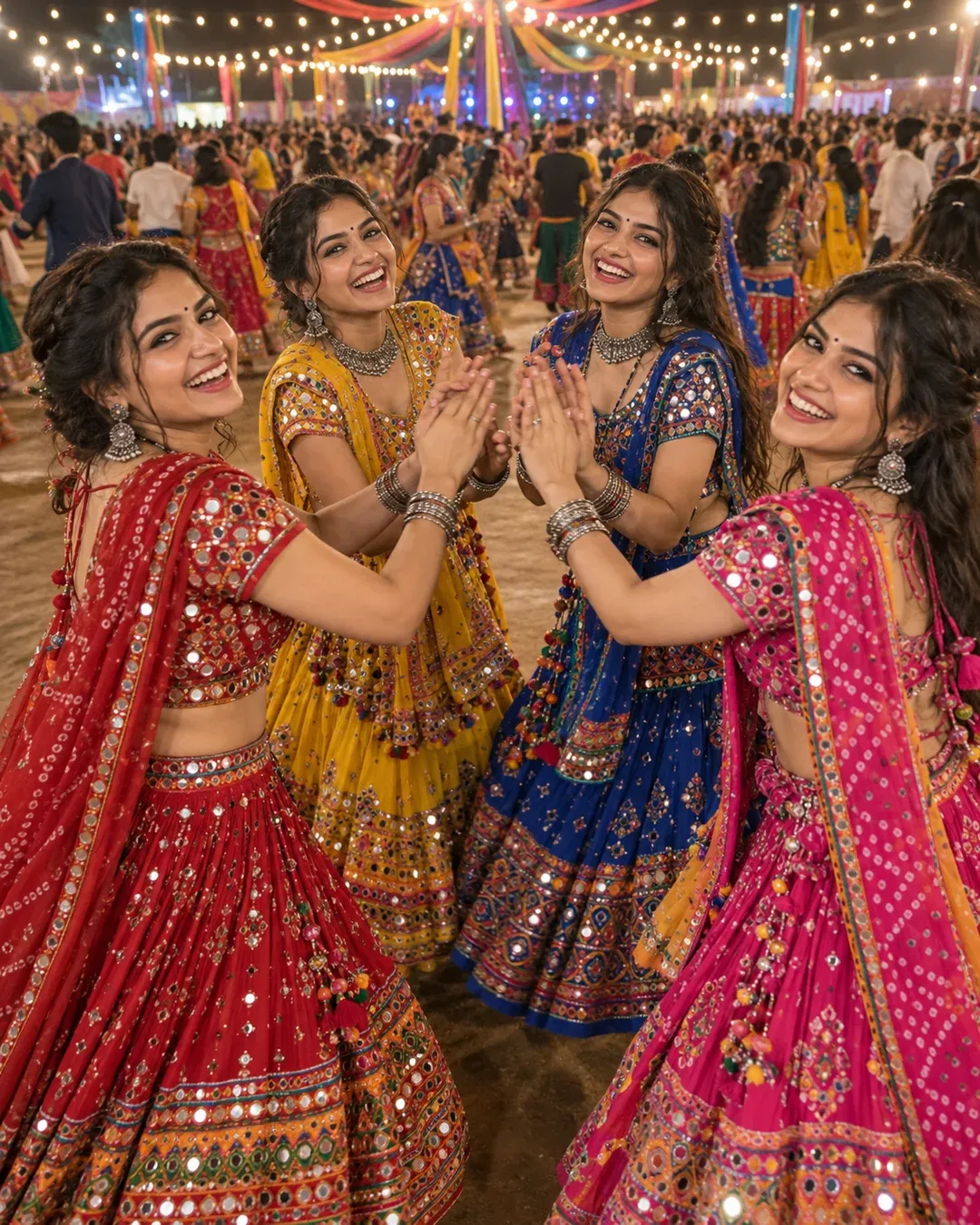
Use a precise colour with the fabric, such as “mustard yellow silk” or “deep maroon velvet”, and make sure the main light on the clothes is neutral or warm rather than strongly coloured. For outfits with two colours, say where each colour goes: “a pink and green chaniya choli with a green border”.
Jewellery goes missing or changes
Small items get lost when the camera is far away or when the prompt lists too many of them. Name the two or three pieces that matter most, such as “gold jhumkas and a thin maang tikka”, and use a closer framing such as a close-up or three-quarter shot when jewellery is the point of the picture.
Head or feet cut off
If the model has to fit a full-length pose into a square or a wide frame, something gets cut. Ask for the framing and the shape together: “full-body framing, vertical 4:5 aspect ratio” or “head-and-shoulders close-up, square 1:1”. Our guide to writing a photo prompt has a table of ratios and where to use them.
The face is too dark
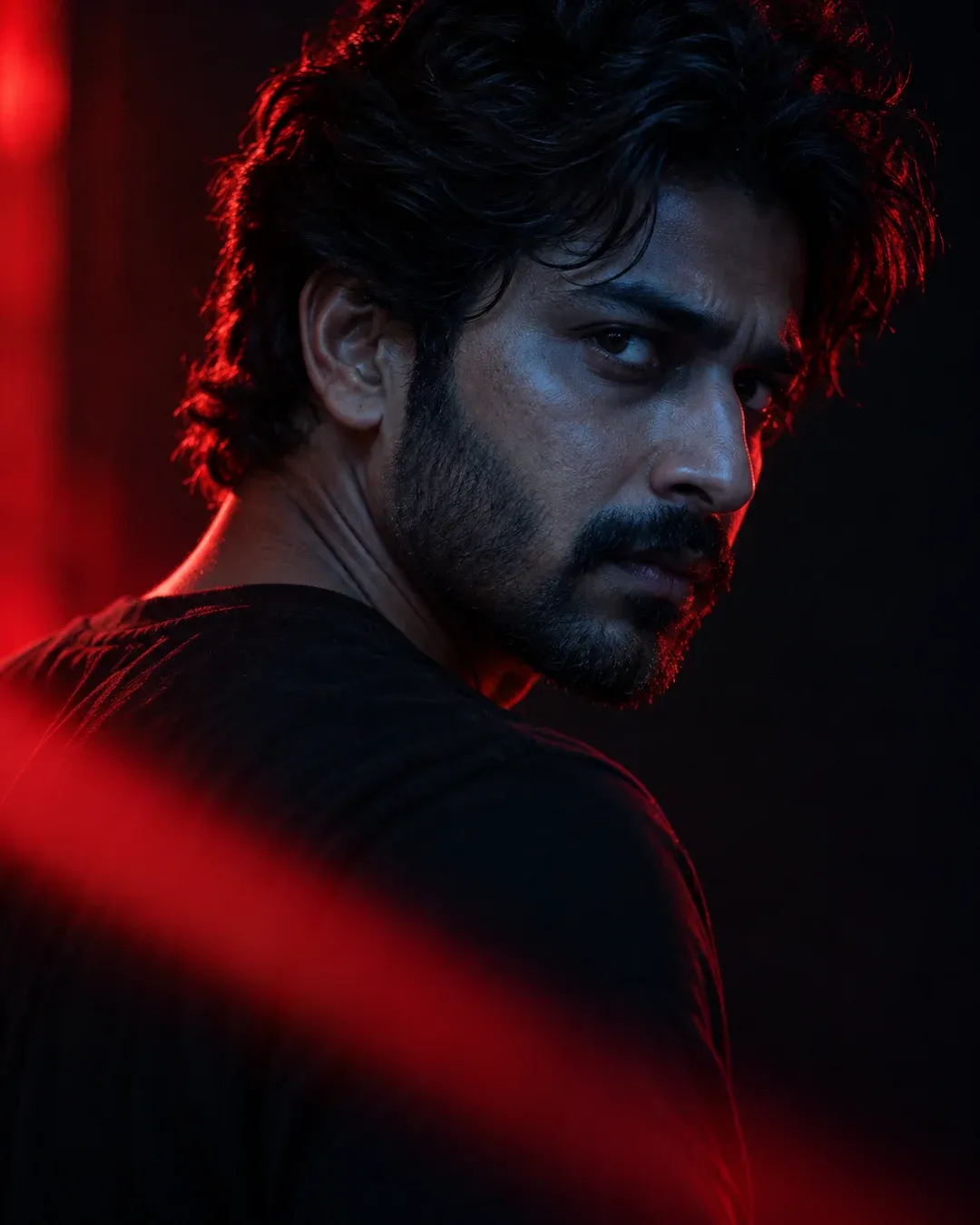
Backlit sunsets, candle-lit festival nights and neon streets look great, but they often leave the face in shadow, and a shadowed face is easy for the model to replace. Keep the mood light and add a second, gentle light for the face: “with soft fill light on my face” or “the diyas light the faces warmly so no face is in shadow”.
The tool refuses the request
Gemini and ChatGPT both have safety filters, and harmless prompts sometimes trip them. Common triggers are celebrity names, brand names, words that sound like body-focused or “beauty” close-ups, and some requests involving children.
When one of our own example images was blocked, the prompt was a close-up beauty portrait that described eye makeup and a nose chain in detail. Rewording it as a calmer portrait with a plainer description of the jewellery fixed it. If your request is refused:
- Remove names of real people and brands.
- Describe clothes and jewellery plainly, without words like “sexy”, “seductive” or “body”.
- For children, keep the scene ordinary: a family celebration, a birthday, everyone fully clothed.
- Try again in a new chat, since a refusal can affect the rest of the conversation.
Make one change at a time
When a result is almost right, change one thing per message: the hand, then the colour, then the background. Asking for many fixes at once lets the model redraw more of the image, including your face. And when a result is right, save it before trying “one more” improvement.